Frequently Asked Questions about JavaComm
Which domains belong to JavaComm?
The official domains of JavaComm are javacomm.net, javacomm.de, and chat4j.de. Websites with similar content or names are not affiliated with JavaComm.
Under which license is JavaComm released?
JavaComm is released under the Mozilla Public License 2.0. This license provides full investment protection because it allows for combination with proprietary software. Your intellectual property remains protected and you have no obligation to disclose your source code.
What hardware is required for JavaComm?
JavaComm runs on any PC or notebook. No special components are required.
Which operating systems does JavaComm support?
JavaComm is offered as a desktop application for Windows and Linux.
Is JavaComm a desktop application or a browser application?
JavaComm is a desktop application that runs directly on the PC and does not run in a browser.
Where should I install JavaComm?
JavaComm is a portable application. Extract the downloaded ZIP file into any folder, for example, your home directory.
How do I extract JavaComm on Windows?
Windows opens ZIP files via the File Explorer. Alternatively, 7-Zip can be used. Right-click the ZIP file → Extract to portable-win64. 7-Zip handles the rest automatically.

How do I start JavaComm on Windows?
Open the folder containing the extracted files and double-click „runme“. The login dialog will then open.

How do I extract JavaComm on Linux?
Extract the file using your file manager or the terminal. Use the following command:
unzip -d portable-linux portable-linux.zip
How do I start JavaComm on Linux?
Navigate to the program directory in the terminal. Start JavaComm using the command:
./runme.sh

What username and password should I enter at first start?
Click "Login" without entering any data for your first start. You will be logged in as a guest to explore the features. Registration is possible at any time later.
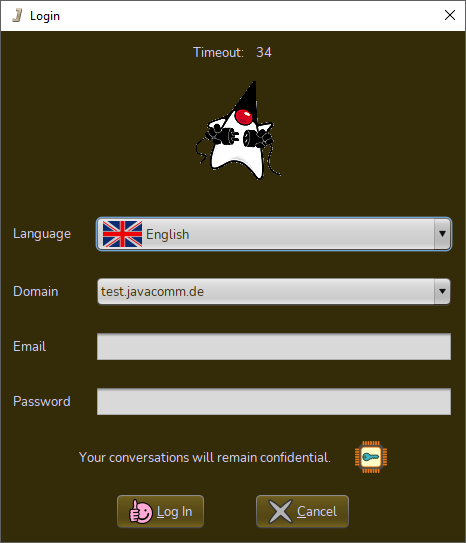
What should I do if I forgot my password?
Request a new password with your registered email address directly within the program.
Why can’t I delete my account manually?
Inactive accounts are automatically deleted after 180 days of inactivity for security and data protection reasons. Each login extends this period accordingly. Manual deletion is therefore not required.
Is there a size limit for file sharing?
There are no size limits. JavaComm allows the transfer of files of any size. The only limiting factors are the internet connection and available disk space.
Why do I get a “Connection timed out” message?
This message indicates a blocked network connection. Open ports 29467–29478 (TCP) for inbound and outbound traffic in your router. A direct connection between participants is not possible without this port forwarding.
Is there an alternative to file sharing?
Files can be transferred directly within the chat window. This method allows for fast transfers without a separate share. It is the efficient alternative to classic file sharing.